Non classé

WordPress.org blog: WordPress Playground Brings Speed, Stability, and Momentum
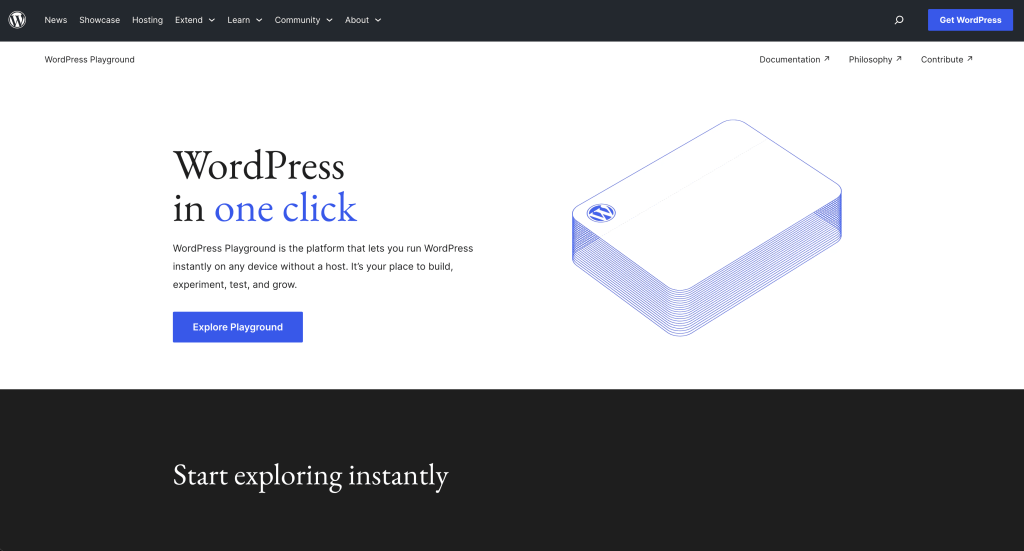
WordPress Playground had a busy year in 2025, with updates that make it more capable for day-to-day development, plugin previews, and learning environments. The project’s latest year-in-review highlights progress across performance, compatibility, database support, and tooling, expanding what can be done in a WordPress environment that runs in the browser and through the command line. From faster load times to broader plugin support, the throughline is clear: Playground is moving beyond quick demos and into workflows that help developers and educators test, iterate, and share WordPress experiences more easily. Try Playground Now Key Takeaways Plugin previews are more reliable: 99% of the top 1,000 plugins can be installed and activated successfully, making demos and evaluations more trustworthy. Everything is faster: A performance upgrade reduced average response time by 42%, and further optimizations improved overall “time to first useful click.” Database tools work in browser: Improved database compatibility enabled tools like phpMyAdmin to be used directly on playground.wordpress.net.More practical tooling for real work: Testing configurations and previewing changes can happen in one place, without a complete local environment first. New visual gallery of blueprints: A new visual gallery of blueprints provides excellent starting points for various types of sites. Global adoption: Playground was used 1.4 million times globally, with growing documentation translations and community contributions. Reliable Plugin Previews and Experimentation A headline update from 2025 is the focus on compatibility. In testing with the top 1,000 plugins from the WordPress plugin directory, 99% installed and activated successfully. That matters because it raises confidence in what Playground is best known for: letting people try things quickly, without a complex setup, and with fewer surprises. This highlighted that Playground is increasingly useful as a general-purpose PHP sandbox. Alongside WordPress, it can support standard PHP tools and projects, which makes it easier to explore how WordPress fits into broader development workflows and to share reproducible environments with others. If you try something new and unexpected in Playground, the update encourages you to share what you learn in the #playground Slack channel, so the community can build a clearer picture of what works well today and what is improving next. Faster Load Times Speed was a central theme in 2025. A recent year-in-review report revealed a 42% reduction in average response time, and this is not just a single change. A series of improvements make Playground feel quicker in the moments people notice most, such as loading WordPress, opening wp-admin, and switching between tasks. Several behind-the-scenes updates were described in plain terms as “less waiting”: checks happen earlier, parts of the experience load in a smarter order, and more content is reused from cache, so repeat actions are snappier. For people using Playground to review a plugin, validate a bug fix, or teach a class, these improvements mean the same thing: faster feedback loops, with fewer pauses that break concentration. Better Tooling and Compatibility In 2025, Playground also became more “toolbox-like” in the browser. The update highlighted features that reduce context switching, such as editing files on the page, building and testing starter configurations (Blueprints) in a dedicated editor, and launching database tools such as phpMyAdmin and Adminer with a single click. On the database side, a significant compatibility upgrade was introduced to improve support for more complex database behavior. The practical outcome is that more WordPress sites and plugins behave as expected in Playground, and more developer tools can run inside the environment. Blueprints also advanced in ways that benefit both builders and sharers. The updates focus on making starter setups easier to create, browse, and reuse, especially when a demo requires content, media, or a specific configuration that should launch consistently. One of the clearest ways to see that progress is the WordPress Blueprints Gallery, a community library of ready-to-launch WordPress environments. From practical “building block” examples (such as starting with a specific login role) to demos that automatically install themes and plugins, to richer setups that generate posts and featured images via WP-CLI, the gallery demonstrates how quickly an idea can become a fully functional site that you can browse and share. Examples: For anyone who wants to experience the power of WordPress without the setup, the gallery serves as a strong reminder of what Playground makes possible: shareable, repeatable site experiences that work the same way every time — ideal for demos, workshops, testing, and “try it now” links. Clear adoption signals back all of this. The review reports 1.4 million uses globally, documentation translations in multiple languages, and growing integration across the plugin directory through Playground-powered previews. It also points to a steady increase in community contribution, from documentation and support to talks and real-world workflows built on top of Playground. A huge thank you to everyone who tried Playground over the past year, whether you launched a quick demo, tested a change, taught a workshop, or helped make the documentation more accessible in your language. And if there’s anything that would make Playground even more helpful for your day-to-day work, the project actively welcomes ideas and feature requests via the WordPress Playground GitHub issues tracker. Looking Ahead As we closed out 2025 and now look forward to 2026, we can see several forward-looking initiatives, including work on MySQL binary protocol support (to enhance broader compatibility with MySQL tools) and continued exploration of debugging enhancements, such as expanded XDebug access. For anyone who last tried Playground as a quick demo environment, 2025’s updates suggested a shift in direction: Playground is increasingly positioned as a practical layer for testing, teaching, previewing, and reviewing WordPress, both in the browser and in local workflows.

WordPress.org blog: WordPress Playground Brings Speed, Stability, and Momentum Lire la suite »
#200 – Corey Maass on His Real-Life AI Tools and Workflows in WordPress Development

Transcript [00:00:19] Nathan Wrigley: Welcome to the Jukebox Podcast from WP Tavern. My name is Nathan Wrigley. Jukebox is a podcast which is dedicated to all things WordPress, the people, the events, the plugins, the blocks, the themes, and in this case real life AI tools and workflows in WordPress development. If you’d like to subscribe to the podcast, you can do that by searching for WP Tavern in your podcast player of choice. Or by going to wptavern.com/feed/podcast, and you can copy that URL into most podcast players. If you have a topic that you’d like us to feature on the podcast, I’m keen to hear from you and hopefully get you, or your idea, featured on the show. Head to wptavern.com/contact/jukebox, and use the form there. So on the podcast today, we have Corey Maass. Corey’s been building for the web since the late nineties, starting out in the early days of Photoshop and tables. Learning JavaScript, ASP Classic and PHP, and eventually falling into the world of WordPress around 2010. Since then, he’s taken on building SaaS apps, managing client projects, and experimenting with a growing number of productivity tools and frameworks. He’s joined us before, and today he’s here to share his perspective on what it’s been like adopting AI tools into his workflows, especially from the point of view of building projects for clients. Although AI has dominated headlines over the last couple of years, Corey brings a practical angle to the conversation. He discusses the evolution of his tech stack and how embracing AI tools like Cursor, Claude Code and GitHub Copilot have completely changed the way he builds software and manages projects, allowing him to work faster, automate code, review, and unlock creativity in places he hadn’t expected. We hear about how his journey with AI started, how he’s reimagined old projects using new tools, and how learning to interact with these models, sometimes granular, sometimes letting them run freely, has reshaped his daily workflow. Corey describes the shift from using AI to just save time, to using it as a sounding board for inspiration and idea generation, even weaving it into artistic endeavors like music production. Much of the discussion centers around how these advances have affected client work with Corey exploring the real world balance of responsibility, efficiency, and the changing nature of value for developers. Do clients care who, or what, wrote the code? Or just that it works? What does authentic creativity mean in an era where prompting and randomness a part of the toolkit? Whether you’re a developer, curious about what working alongside AI means, or just wondering about the future of tech, and WordPress, in an increasingly automated world, this episode is for you. If you’re interested in finding out more, you can find all of the links in the show notes by heading to wptavern.com/podcast, where you’ll find all the other episodes as well. And so without further delay, I bring you, Corey Maass. I am joined on the podcast by Corey Maass. Hello, Corey. [00:03:33] Corey Maass: Hello. [00:03:33] Nathan Wrigley: Very nice to have you with us. Corey’s been on the podcast several times before. He’s here today to talk about the subject, which almost nobody has touched during the year 2025, that’s AI. But actually I think we’ve got a curious angle because we’re not just going to touch it from a sort of more generic point of view, although we might. We’re going to talk about it from a client point of view and building things for clients and how, I guess, Corey is leveraging that to make life a little bit easier for himself. Let’s find out. First of all, Corey, would you just introduce yourself? Give us you a little bio, tell us about you. [00:04:04] Corey Maass: Absolutely, Corey Maass. I currently live in New Hampshire, which is in the northeast of the United States. I’ve been building for the web since 97, I think. Back in the day when we would do designs in Photoshop and then slice them up and put them in tables. And then I learned JavaScript, and I learned ASP Classic, and I learned PHP, and I got obsessed with building SaaS apps, you know, making websites actually do stuff instead of just look pretty. And then I found WordPress in about 2010 and it’s all been a wonderful, joyous, rollercoaster ride of happiness without exception. [00:04:45] Nathan Wrigley: That’s lovely. And I think we should end the podcast right there. [00:04:48] Corey Maass: And I met this wonderful guy named Nathan somewhere along the way, and my heart is full. [00:04:53] Nathan Wrigley: It does not get better than that. I really think we should end there. Congratulations, Corey Maass, we’ll see you next time. No, let’s get into it properly. [00:05:01] Corey Maass: And then the robots came. [00:05:03] Nathan Wrigley: That’s right. That’s what we are going to talk about. But you’ve been building for a long time. I mean, in terms of the internet, you really are like the heritage, aren’t you? 1997 was when people were just sort of starting out. I mean, there’s a few people that go maybe a little bit longer than that, but you’ve seen the whole thing. Seems like in the year 2023, something like that, maybe 2024, certainly 2025, we’ve now got the advent of companions, AI companions that are helping us to do things online and build websites and so on. And I’m kind of just curious, let’s talk about your stack and where it is at the moment, and then we’ll get into how that stack has changed. But just tell us what you’re using right now. And we’re recording that December, 2025. And no doubt that will change fairly soon. [00:05:45] Corey Maass: Still changes frequently. We’re chatting before we started recording and you said, have you updated Mac OS to this glass nonsense? And I went, absolutely. I

#200 – Corey Maass on His Real-Life AI Tools and Workflows in WordPress Development Lire la suite »

How I Went From Zero to Make.com-Like Automation in WordPress (The Easy Way)

Automating your WordPress site doesn’t have to feel like rocket science. Tools like Make.com are powerful, but for many beginners, they can feel overwhelming. Between extra connection steps and complex setups (like webhooks), it’s easy to get stuck before anything actually works. That’s where a plugin like Uncanny Automator makes a big difference. It lets you build Make.com–style workflows in WordPress using a simple setup that feels familiar and easy to follow. You can connect your favorite plugins, trigger actions based on what users do on your site, and even add AI-powered tasks in just a few minutes. In this guide, I’ll show you how I automated my WordPress site to work like Make.com. The goal is simple: spend less time on repetitive tasks, keep things running smoothly, and focus more on growing your site instead of managing it. 💡Quick Answer: How to Add Make.com-Style Automation in WordPress You can create Make.com-style automation in WordPress using Uncanny Automator by setting up a simple “if this happens, then do that” workflow, called a recipe. You choose a trigger, like publishing a new post, then decide what should happen next, such as generating an AI summary and saving it to Google Sheets. Once the recipe is set to Live, it runs automatically every time that trigger occurs. Here is an overview of all the topics that I’ll be covering in this guide: Why I Moved Away from Make.com (And You Can Too) What Make.com Does Really Well 🌟The Solution: Why Uncanny Automator Feels Like Make.com But Easier How Uncanny Automator Saves You Money Real-World Workflow: How to Automate Blog Post Summaries with Uncanny Automator Step 1: Install and Activate Uncanny Automator Step 2: Connect OpenAI to Uncanny Automator Step 3: Connect Uncanny Automator to Google Sheets Step 4: Create Your Recipe in Uncanny Automator Step 5: Add the OpenAI Action to Generate Blog Post Summaries Step 6: Add the Google Sheets Action to Store Summaries Step 7: Save and Activate Your Recipe Next Steps for Building Make.com-Style Workflows Right in WordPress Frequently Asked Questions About Uncanny Automator vs. Make.com Additional Resources to Take Your Automations to the Next Level Why I Moved Away from Make.com (And You Can Too) I moved away from Make.com because it became harder to manage as my site grew. While it’s a powerful automation tool, the setup and maintenance can feel like too much if you just want things to work inside WordPress. Make.com is a visual automation platform that helps you connect different apps and services using workflows called scenarios. You build these workflows by dragging and connecting blocks, so when something happens in one app, it triggers actions in another. It’s a great tool, but for many WordPress site owners, it can feel disconnected from how WordPress actually works day to day. Over time, I wanted something simpler and more tightly integrated with my site. 3 Challenges That Made Me Switch Away From Make.com Make.com stopped working for me once everyday automations began taking more time to set up and maintain than the tasks themselves. Here are the three biggest reasons I decided to move away: Challenge What It Means Why It Matters Steep Learning Curve Even simple workflows require hours of tutorials to understand modules like Routers, Iterators, and Aggregators. Beginners can get stuck before automations even start working. Unpredictable Pricing Costs depend on “operations,” which means you pay for every single internal step, filter, and logical check—not just the final result. Processing the exact same 500 WooCommerce orders can cost significantly more if you add a simple filter. Hard to budget as your site traffic or sales grow. Extra Complexity with WordPress Integrating Make.com requires APIs, webhooks, and third-party connections. Workflows can break when plugins update, Ongoing troubleshooting slows you down and adds stress. At that point, I realized I needed an automation solution that felt simpler, more predictable, and built specifically for WordPress. What Make.com Does Really Well In plain English, Make.com is great when you need lots of ‘if this, then that’ paths and you’re connecting many apps outside WordPress. For instance, it has: A visual flowchart builder that lets you design automations by connecting steps visually, making it easy to understand how data moves from one action to the next. Built-in branching and routing using Router modules, so different actions can run based on conditions you set. A large integration library, with access to thousands of apps and services that you can connect without building everything from scratch. Advanced automation logic, including Iterators and Aggregators for working with lists of data, plus filters to control when actions run. These features are great when you need detailed control over complex workflows. However, for many everyday WordPress automations, they can feel like more than you actually need. When Does Using Make.com Still Make Sense? Even though I moved away from Make.com, there are situations where it still works well: For Apps Outside WordPress – If you need to connect tools that Uncanny Automator doesn’t support, then Make.com gives you access to thousands of apps. Already Heavily Invested – If you’ve built a lot of workflows in Make.com, then switching everything might not be worth it right away. Advanced HTTP Modules – While Automator Pro handles most webhook needs, some very advanced HTTP requests might still be easier in Make.com. In most everyday WordPress use cases, Automator handles everything smoothly, but it’s good to know Make.com can still be useful in these scenarios. 🌟The Solution: Why Uncanny Automator Feels Like Make.com But Easier After running into too many challenges with Make.com, I finally found a solution that checks all the boxes: Uncanny Automator. It is the best WordPress automation plugin that lets you connect your favorite plugins, WordPress features, and hundreds of external apps. You build workflows—called Recipes—using a simple visual builder. It works like Make.com, but everything happens inside WordPress, so setup is faster, management is simpler, and scaling your site is easier. With Automator, you get the power of advanced

How I Went From Zero to Make.com-Like Automation in WordPress (The Easy Way) Lire la suite »

Matt: Remembering Jesus Ornelas

Today we honored the passing of Jesus Ornelas, the father of my friend Rene, whom I’ve known for 28 years now. At the service outpouring of love expressed in words, music, and presence was so powerful. Alongside his biological sons, I said a few words, which are as follows. My memories of Mr. Ornelas begin with seeing him, without fail, drive Rene halfway across town twice a day to attend HSPVA to support his artistic calling, even though his own predilection was for handicraft. The tireless devotion of a father working to create a better life for his son. I remember fondly when we would gather at Woodlawn, three houses on the same street, his sly smile and contentment seeing all of his family so close together. Gosh, looking back, we were so poor, but only in money. We were rich in love and family. My memories of those times are not what we lacked, but the abundance of what we had together, which was time, friendship, and some pretty darn good food. Mrs. Ornelas, your love and devotion to your husband through these twenty one years of dementia is an inspiration to us all who love a partner and a testament to the human spirit. Su amor y devoción hacia su esposo a lo largo de estos veinte uno años de demencia son una inspiración para todos nosotros que amamos a una pareja y un testimonio del espíritu humano. To Jesse, Eddie, and Rene, I will say that how you live as men is a testament to the example your father set. I can’t imagine how proud he must be looking down at this room, seeing how he came from such challenging conditions in Mexico to build a life for you all here in Houston and see every generation grow and prosper even more. Rene, I hope our fathers are together, cracking a beer and smiling as they look down on our lives. Though his corporal form is no longer with us, everyone here will keep him alive by remembering and embodying his best qualities. We don’t need a bracelet to remind us What Would Jesus Do in those invisible acts of service for loved ones. May his memory be a blessing to all of us, and let our actions, seen and unseen, honor his legacy.

Matt: Remembering Jesus Ornelas Lire la suite »

Matt: Shorter Speech

One of the great WordPress blogs is Quote Investigator. In their investigation into the original source of “If I had more time, I would have written a shorter letter,” I came across this great variation from Woodrow Wilson on the amount of time he spent preparing speeches. “That depends on the length of the speech,” answered the President. “If it is a ten-minute speech it takes me all of two weeks to prepare it; if it is a half-hour speech it takes me a week; if I can talk as long as I want to it requires no preparation at all. I am ready now.” So true.

Matt: Shorter Speech Lire la suite »

How to Build AI-Powered Calculators in WordPress in Minutes (No Code)

When visitors land on your website, they’re usually looking for answers. What if you could give them a tool that provides instant, personalized results? That’s exactly what interactive calculators do, and they’re easier to build than you might think. For example, simple loan calculators have become the highest-traffic pages on many financial websites, generating more leads than any other content type. And with AI technology, you don’t need to be a math genius or coding expert to create these calculators. In this guide, I’ll show you how to build professional AI-powered calculators for WordPress using simple form templates. Whether you need a cost estimator for your services, an event pricing calculator, or any custom calculation tool, I’ll walk you through the entire process, step by step. TL;DR: AI calculators boost engagement and capture leads without requiring code. In this guide, I show you how to build them using WPForms (for price estimates and simple math) and Formidable Forms (for complex, AI-driven advice). Why Add AI-Powered Calculators to Your WordPress Site? Interactive calculators are proven lead generation tools. They turn passive readers into active participants, keeping visitors on your site longer and encouraging them to share their email addresses to get results. But traditionally, building them required complex math and custom code. AI changes that by doing the heavy lifting for you. Here is why AI-powered calculators are a major breakthrough: AI Advantage Benefit for You No Math or Coding Required Simply describe what you want to calculate in plain English, and the AI writes the formulas for you. Personalized Advice Instead of just a number, AI can analyze inputs to offer tailored tips, just like a human consultant would. Handles Complex Logic AI can process messy or vague inputs and still deliver accurate, helpful results instantly. Whether you need a price quote tool or a mortgage calculator, AI makes the setup process fast and reliable. The good news is that reputable plugins like WPForms Pro and Formidable Forms have built their AI features on proven technology, offer excellent support, and are trusted by thousands of WordPress sites. Ready to build one? Let’s look at the easiest ways to do it: Method 1: Using WPForms for AI-Assisted Calculations (Easier) Method 2: Using Formidable Forms for Advanced AI Logic Bonus Tips to Get More From Your AI Calculators Privacy and Legal Considerations for Online Calculators Frequently Asked Questions About Using AI-Powered Calculators Next Steps for Lead Generation Method 1: Using WPForms for AI-Assisted Calculations (Easier) WPForms is perfect when you need calculators with straightforward math and conditional logic. This method works best for price estimators, event budgets, and shipping calculators where you’re multiplying values, adding costs based on selections, or applying discount rules. The plugin’s AI-powered formula generator is what makes this approach so beginner-friendly. Instead of learning complex formula syntax, you simply describe what you want to calculate in plain English, and the AI converts it into the correct formula for you. Note: There is a free version of WPForms available. However, for this tutorial, I will be using the Pro version because it includes the Calculations addon you need. Step 1: Install WPForms and Addons First, install and activate WPForms Pro. If you need help, see our guide on how to install a WordPress plugin. Once activated, head over to WPForms » Settings. Here you can enter your license key into the ‘License Key’ field. You can find this information in your WPForms account or the email you received when you purchased the plugin. Next, you need to enable the calculations feature. Go to WPForms » Addons, search for ‘Calculations,’ and click the ‘Install Addon’ button. This feature is included with the Pro plan, so you don’t need to purchase anything separately. Step 2: Generate the Calculator with AI Now you need to go to WPForms » Add New Form in your WordPress dashboard. First, enter a name for your calculator at the top of the screen. To create a calculator using AI, look for the template called ‘Generate With AI’. Next, click the ‘Generate Form’ button. You may see a popup asking to install recommended addons. Click the ‘Yes, Install’ button to ensure all necessary tools are enabled. In the chat box, you need to describe your calculator in detail. The more specific you are, the better the math will be. For example: “Create a wedding cost estimator. Include a number field for guests (multiplied by $50/head), a dropdown for venue type (Hotel adds $1000), and a checkbox for extras (DJ adds $500). Add a Total field at the end.” Now you can generate the form by clicking the blue right arrow button. WPForms will automatically build the fields and write the mathematical formulas for you. For example, here is the form it built using the example prompt above. If you are happy with the form, then click the orange ‘Use This Form’ button. Otherwise, you can type in a different prompt to improve the form. Step 3: Review and Customize the Formula Since the AI has already written the math, you just need to verify it. Scroll down to the ‘Total’ field and click it to open the settings. Switch to the ‘Advanced’ tab. You should see ‘Enable Calculations’ toggled on, with the formula code already in the box. If it looks correct, then you don’t need to do anything else. However, if you want to change the logic, simply click the ‘Generate Formula’ button. For example, to add a tax rate you forgot to mention in the prompt, you can tell the AI: ‘Take the current formula and add 10% tax to the result.’ It will rewrite the code for you instantly. Important: Generating a new formula will overwrite the existing code in that field. I recommend testing your form first (Step 4) before making changes here. Step 4: Preview and Embed Before publishing, click the ‘Preview’ button at the top of the form builder. This opens your calculator in a new tab where you can test it with real values. Here,

How to Build AI-Powered Calculators in WordPress in Minutes (No Code) Lire la suite »