
Non classé

How to Setup a WordPress Appointment Booking System & Book Clients 24/7
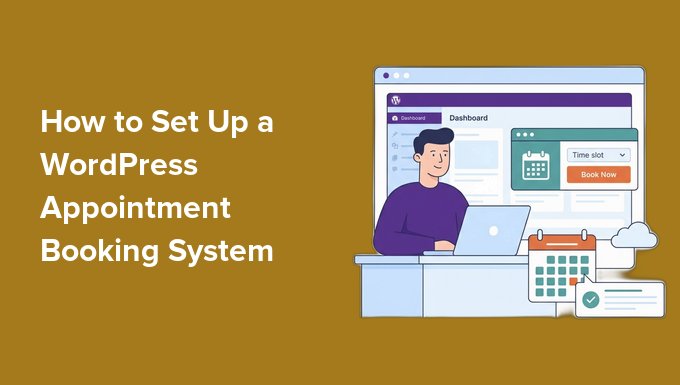
Sending emails back and forth with potential customers just to find an appointment time is a huge waste of time that often leads to lost sales. When you’re stuck managing a calendar all morning, you can’t focus on actually serving your clients. That’s why I recommend accepting appointments directly on your WordPress website. This can save you hours every week and keep leads from falling through the cracks. I’ve tested several scheduling tools, and I found that Sugar Calendar Bookings is the best way to automate your bookings. It’s powerful enough to handle complex scheduling, yet simple enough to set up in less than an hour. In this guide, I’ll walk you through every step to set up a professional booking system. By the end, you’ll have a hands-free system that accepts appointments and takes payments while you sleep. TL;DR: I recommend using Sugar Calendar Bookings to automate your appointments and keep clients on your website. The free version lets you set your hours and accept Stripe payments, while the Pro version adds advanced features like staff management and buffer times between meetings. Here are the topics I will cover in this tutorial: Why Your Business Needs a WordPress Booking System Step 1: Installing the Sugar Calendar Bookings Plugin Step 2: Creating Your Professional Services Step 3: Setting Your Availability and Working Hours Step 4: Connecting Stripe for Automated Payments Step 5: Adding the Booking Form to Your Website Managing Your Booking Schedule and Growth Frequently Asked Questions About WordPress Booking Systems Additional Resources for Managing Appointments Why Your Business Needs a WordPress Booking System I often see business owners hit what I like to call the ‘manual booking ceiling’. This is the point where administrative busywork, like chasing down clients and trading endless emails, starts to take more time than actually running your business. While many people start with third-party tools like Calendly, I’ve found that hosting your own booking system on WordPress offers massive advantages over using a separate SaaS platform: Total Brand Control: When you use an external link (like calendly.com/your-name), you send your clients away from your website. This creates a ‘branding leak’ where they lose your site’s navigation and may even see the third-party’s logos or suggested services. Keeping them on your own domain builds trust and keeps their focus on your business. No Monthly ‘Subscription Tax’: Most SaaS booking tools charge a recurring monthly fee for essential features like Stripe payments or custom reminders. Using a WordPress plugin like Sugar Calendar Bookings lets you own the system and keep more of your revenue. Secure the Revenue: Plugins like Sugar Calendar let you request a deposit via Stripe upfront to make sure clients are committed to the appointment. I’ve found this is the most effective way to filter out people who aren’t serious about your time. Better SEO and Analytics: When a client visits your internal booking page, it counts as traffic for your site, helping your search engine rankings. If you use an external tool, they get the SEO benefit and the customer data, not you. When your business is small, you can get away with a paper planner or a simple contact form. But as you grow, you cannot afford to spend hours doing manual admin work instead of running your business. By moving to an automated system, you reclaim your time and remove the friction that prevents your business from scaling to the next level. Tip: If you don’t have a website yet, I recommend using WordPress. It is the most flexible platform for small businesses, and you can see my guide on how to start a WordPress website to get set up today. Step 1: Installing the Sugar Calendar Bookings Plugin Before you can start booking clients, you need to install the plugin. Sugar Calendar Bookings is a standalone WordPress plugin. There are two versions you can choose from: Sugar Calendar Bookings Lite: This is the free version, and it is the one we will be using for this tutorial. It includes everything you need to get started, including free Stripe integration for accepting payments. Sugar Calendar Bookings Pro: This is the premium upgrade. I highly recommend it as your business grows and you need advanced features like managing multiple staff members, assigning specific working hours per employee, and creating custom email templates. If you need help, you can see our guide on how to install a WordPress plugin. Step 2: Creating Your Professional Services Once the plugin is activated, the very first thing you need to do is define exactly what your clients are booking. In Sugar Calendar Bookings, these are called ‘Services’. You can create as many as you need, such as a ’15-Minute Discovery Call’ or a ‘Full 1-Hour Consultation’. To get started, navigate to Bookings » Services in your left-hand WordPress dashboard menu and click the ‘Add New’ button. On the ‘General’ tab of this screen, you will start by entering your Service Name. I recommend choosing a clear, descriptive title that clients will instantly understand, such as ’30-Minute Discovery Call’ or ‘Full Website Audit’. Next, you will set the exact Duration of the appointment in minutes. It is important to be accurate here so the plugin knows exactly how much time to block off on your calendar to prevent double-booking. Next, you need to set the Location. If you meet clients virtually, you can click ‘Add Location Option’, select ‘Custom Link’, and paste your Zoom, Google Meet, or Microsoft Teams URL right here. Don’t worry about doing timezone math. The booking calendar will automatically display your availability in your client’s local timezone. If you have a physical office, you can enter your street address instead. Below that, you can set the Price and add a Description. I always use the description area to be very clear about my payment terms. For example, if I am only charging a small fee upfront, I make sure to state that it is a ‘Non-refundable Deposit’ so there are

How to Setup a WordPress Appointment Booking System & Book Clients 24/7 Lire la suite »
Matt: Easter Thoughts

You call yourself a Christian engineer, but you haven’t given your life to Open Source? Huh. What license would Jesus choose? I don’t know if it’s GPL or MIT, but sure as heck it isn’t proprietary. Letting proprietary code dictate your life is like following a Bible you’re not allowed to read. Beware those who would seek to mediate your relationship to the divine. Happy Easter, y’all. (and the new colors are on the site.)

Matt: Easter Thoughts Lire la suite »

Matt: Turn Every Page

If you’re looking for a good watch this weekend, I couldn’t recommend more the documentary Turn Every Page – The Adventures of Robert Caro and Robert Gottlieb. The craft of research, writing, and editing is presented in the most beautiful way possible. Around 400,000 words were removed from The Power Broker, which was ultimately published as 1,162 pages.

Matt: Turn Every Page Lire la suite »

Visualizer’s Latest Release Is Here, Packed With AI Magic

Creating charts just got a whole lot easier. A lot of tools have been rushing to add AI just to keep up. We took a step back, understood exactly where AI could make the biggest difference for Visualizer users, and then we shipped it. No shortcuts. No gimmicks. Just a thoughtful update that genuinely makes… The post Visualizer’s Latest Release Is Here, Packed With AI Magic appeared first on Themeisle Blog.

Visualizer’s Latest Release Is Here, Packed With AI Magic Lire la suite »

How I Built a Customer Feedback Loop With Surveys in WordPress

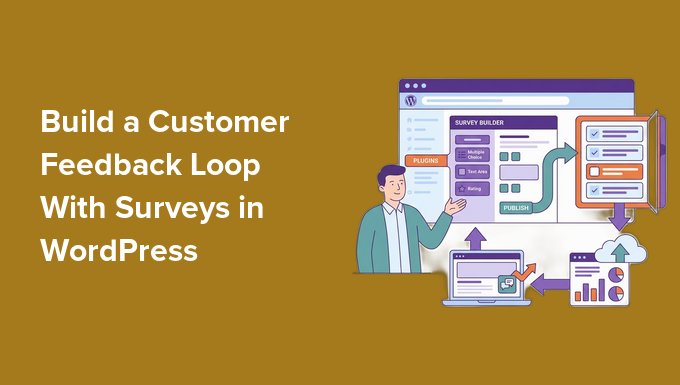
Many website owners collect user feedback but never act on it, so they keep making the same guesses about what to build, write, or fix next. A customer feedback loop changes that by turning survey responses into a clear list of the improvements that will actually grow your business. It takes the guesswork out of your strategy by letting your users tell you exactly what they need. We have used a similar process to decide which features to build in our plugins and which tutorials to write next for our readers. In this guide, I’ll walk you through how to set up a customer feedback loop in WordPress. This helps you make the improvements that matter most to your users. 💡Quick Answer: How Do You Create a Customer Feedback Loop in WordPress? In WordPress, the easiest way to create a customer feedback loop is by using a survey plugin like WPForms or UserFeedback to gather feedback from visitors or customers. Once responses come in, you can review the results, identify patterns, and make improvements to your site or product. You can also share updates with your audience to show them that their feedback made a difference. Here is a quick overview of all the topics I’ll be covering in this guide: Why Customer Feedback Matters for WordPress Sites What Is a Customer Feedback Loop? The 4 Stages of a Customer Feedback Loop The Tool We Use to Run Our Surveys at WPBeginner Step 1: Collect Feedback Using a Survey Method 1: Build a Survey Form with WPForms – Powerful, Detailed Feedback for WordPress Method 2: Collect Quick Feedback with UserFeedback – Quick Popup Surveys and Feedback Prompts Where to Share Your Survey in WordPress Step 2: Analyze the Survey Responses Viewing Survey Results with WPForms Viewing Survey Results with UserFeedback How to Analyze Open-Ended Feedback Step 3: Turn Feedback into Improvements What to Do When Feedback Conflicts Step 4: Close the Feedback Loop Common Mistakes to Avoid When Running Surveys Frequently Asked Questions About Customer Feedback Loop in WordPress Why Customer Feedback Matters for WordPress Sites Customer feedback helps you understand what your visitors and customers actually want from your website and business. Instead of guessing what might work, you can use real responses to guide your decisions. For example, feedback can help you improve your products or plugins. It also helps you decide what kind of content to publish next and spot confusing areas on your website that might frustrate visitors. Without a feedback loop, most site owners end up prioritizing whatever feels urgent or interesting to them — which often isn’t what their users actually need. Feedback gives you a ranked list of what to fix first, so you stop wasting time on updates that don’t matter. The best part is that you don’t need a huge website to benefit from this. Even smaller WordPress sites can learn a lot by collecting feedback and paying attention to what users are saying. What Is a Customer Feedback Loop? A customer feedback loop is a simple system. It helps you collect user feedback, review it, improve your website or product, and then communicate the changes you made. The goal isn’t just to gather opinions. The real value comes from turning that feedback into meaningful improvements that make your website more helpful and easier to use. This process works for many different types of WordPress sites. Whether you run a blog, an eCommerce store, or sell WordPress plugins, a feedback loop can help you understand your audience better. This allows you to make smarter decisions. The 4 Stages of a Customer Feedback Loop To make it easier to understand, I like to break a customer feedback loop into four simple stages. Each step shows you exactly how to move from collecting feedback to turning it into real improvements on your website: Collect: Gather feedback from your users using surveys, polls, or feedback forms. This is where you listen to what your audience really thinks. Analyze: Look at the responses and spot patterns. Identify common problems, suggestions, or confusing parts of your site that need attention. Act: Use the insights you gathered to make improvements. This can mean updating your content, improving products, or fixing usability issues. Close the Loop: Finally, show your users that their feedback mattered. Tell them what changes were made based on their input. This builds trust and encourages future feedback. Several of our partner brands use this exact loop to continuously improve their products and services, and it works even for small websites. The Tool We Use to Run Our Surveys at WPBeginner Since we use this customer feedback loop at WPBeginner, I want to be transparent and share the tools we use to collect feedback. You can do this with many WordPress survey plugins, but at WPBeginner, we have used both WPForms and UserFeedback. They make it really easy to create surveys with a drag-and-drop interface, with no coding required. Both tools let you add ratings, multiple-choice, and open-ended questions, making it simple to gather useful insights from your users. They also integrate easily with WordPress, so you can place surveys anywhere on your site, including pages, posts, or popups. Now that you know the tools we use, let’s start building your customer feedback survey. Step 1: Collect Feedback Using a Survey The first step in your customer feedback loop is gathering responses from your users. This is where you hear directly from the people who use your website, products, or content. A well-designed survey makes it easier to identify missing features, improve your content, and fix confusing parts of your site. This gives you actionable insights instead of vague opinions. How to Decide What Questions to Ask When creating your survey, each question should help you make a decision. Start with a clear goal for your survey, whether it’s improving content, identifying missing features, or understanding user satisfaction. Here are some examples of questions that usually give helpful insights: What problem were you trying

How I Built a Customer Feedback Loop With Surveys in WordPress Lire la suite »